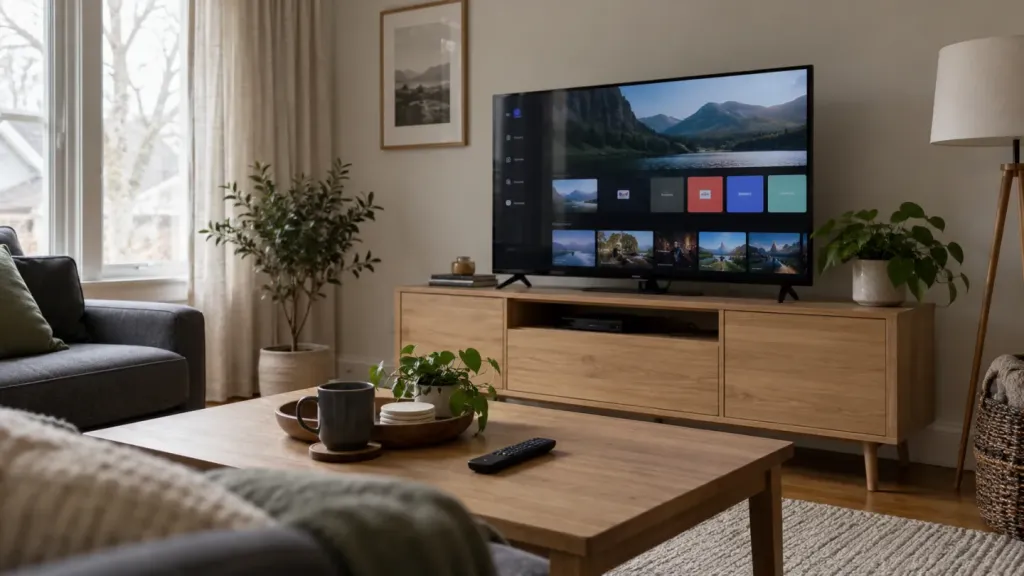
Good news: most recent Smart TVs let you watch IPTV without an extra box. Here’s how to do it on the two most popular brands.
On a Samsung Smart TV (Tizen)
- Press the Home button on your remote and open Apps.
- Search for a compatible IPTV player, such as IPTV Smarters Pro or IBO Player.
- Install the app, then open it.
On an LG Smart TV (webOS)
- Open the LG Content Store.
- Search for the IPTV player of your choice and install it.
- Launch the app from the home screen.
Activate your subscription
Some apps display a MAC address and a device key: send them to us and we’ll activate your playlist. Others let you log in directly with your Xtream Codes credentials (username, password and server URL).
What if my TV is older?
On TVs more than 5 or 6 years old, IPTV apps can be slow or unavailable. A Fire TV Stick or an Android box plugged into HDMI gives you a much smoother experience for a small cost.